Setting up iPad for CheckPoint
Prepare an iPad for CheckPoint step by step, from screen settings to where to place it.
What You Need
Before you start setting up your CheckPoint, make sure you have the following:
- Apple iPad - We recommend iPads from 2018 or newer (iPadOS 17+)
- WiFi connection - Or an iPad with 5G/cellular data if WiFi is not available
- Charger - At least 20W, e.g. IKEA SJÖSS charger
- Charging cable - Make sure the cable is long enough for your placement
- Stand or wall mount - E.g. IKEA HÅVREHÖJ tablet holder or Nedis Universal tablet wall mount
Step 1: Set Up iPad Without Apple Account
We recommend setting up the iPad without signing in to an Apple account. This keeps the device free from personal data and makes it more secure for shared use.
When you reach the screen where the iPad asks for your Apple ID:
- Tap "Forgot password or don't have an Apple ID?"
- Select "Set Up Later in Settings"
- Continue with the setup
See a detailed guide here: Set up iPad without Apple ID
Step 2: Set Screen to Never Turn Off
Your CheckPoint needs to always be ready for use, so the screen must not turn off automatically.
- Open Settings on the iPad
- Tap Display & Brightness
- Tap Auto-Lock
- Select Never
Step 3: Enable Permanent Dark Mode
TwoWork CheckPoint runs in Dark Mode, so the iPad should match this.
- Open Settings
- Tap Display & Brightness
- Under Appearance, select Dark
- Turn off Automatic (if enabled)
Step 4: Log In to TwoWork
- Open Safari and go to TwoWork.app
- Log in with your administrator account
- Go to the Company page
- Scroll to the bottom and tap Enable CheckPoint
Step 5: Install TwoWork on Home Screen
For the best experience, add TwoWork to the iPad's home screen:
- Tap the Share icon in the upper right of Safari
- Tap the Show More arrow
- Tap "Add to Home Screen"
- Tap "Add"
- Open TwoWork from the home screen
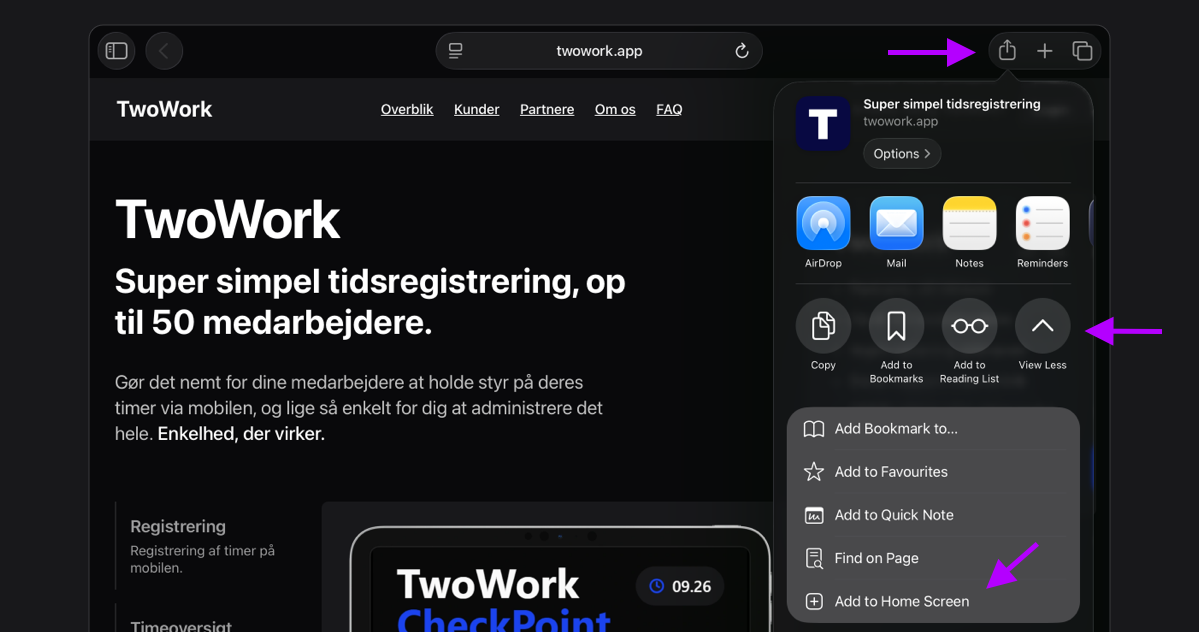
Now TwoWork runs in fullscreen without the browser's address bar!
Placing Your CheckPoint
Place your iPad somewhere all employees can easily see and use it:
- At the entrance to the workplace
- In common areas like the kitchen or changing room
- At eye level for easy use
Next Steps
Now that your iPad is set up, you can configure CheckPoint itself with a name/location and choose which employees to display. Read more in our guide: TwoWork CheckPoint